

 العربية
 Ελληνικά
 עברית
עברית
 Русский
 Українська
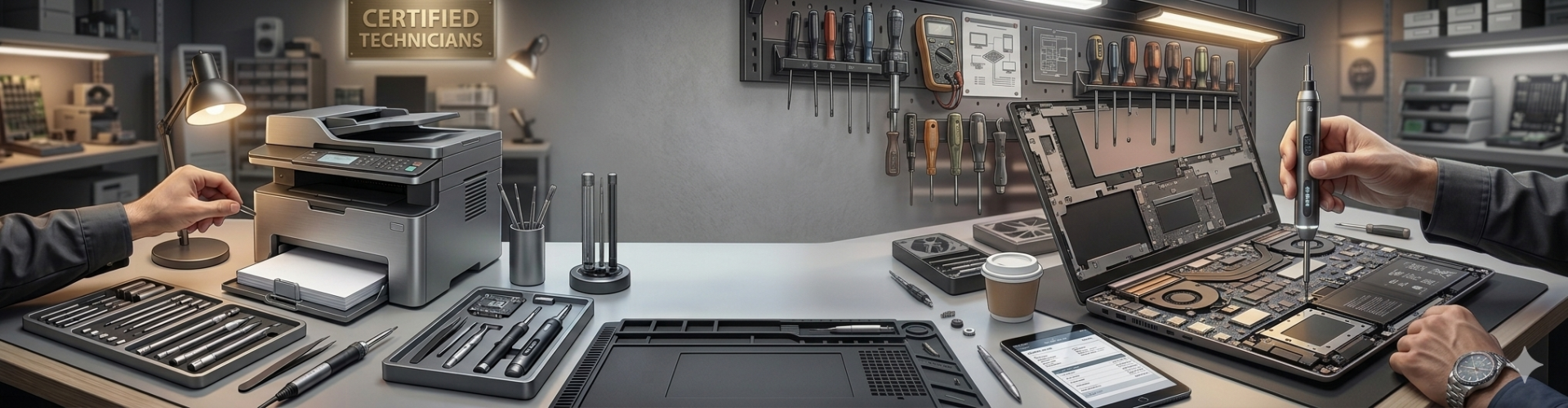
Servicing & Repair - Laptop, PC, Printer

No-Fix-No-Fee
Free Diagnosis and repair on a 'No-Fix-No-Fee' basis

Guarantee
Repairs are covered by a 3-month guarantee

Reasonable Prices
Our price list is reasonable and under the market norm

Contact
We keep our customers informed in the process
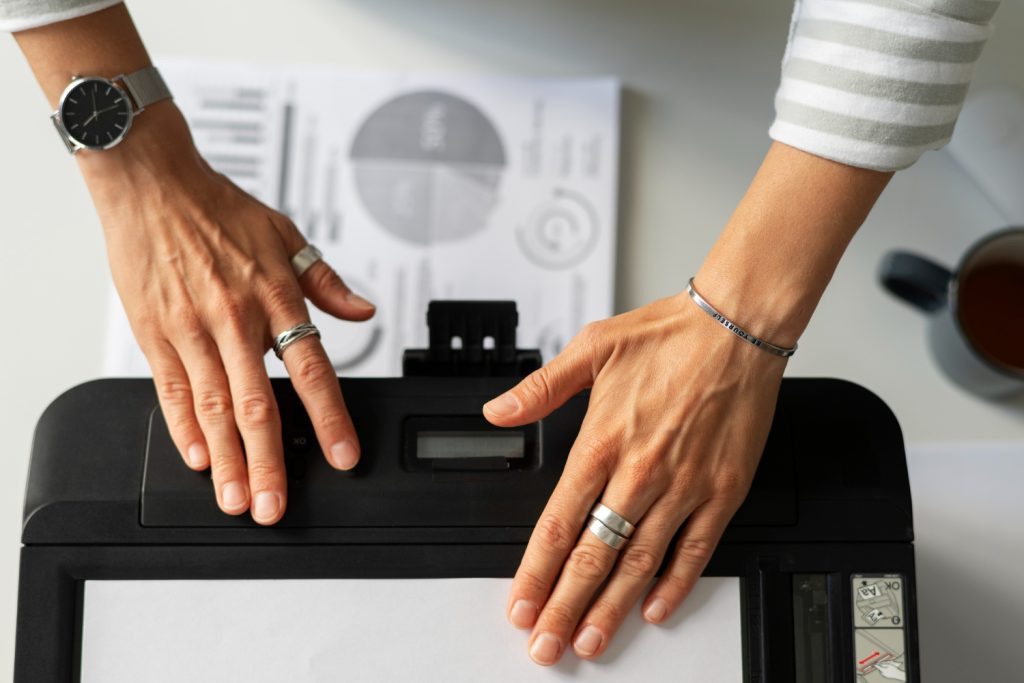
Expert repairs for printers
Our technicians offer FREE Diagnosis, so come and talk to us.
We only charge if we undertake the repair and will keep you informed along the way.
Office Printer or Copier?
No Problem! We can visit your office. Simply complete the Contact Form below.
Business critical?
We can deliver a printer on loan while your device is being fixed.

777 777 85
Request a call-out visit, or drop-off your device at our shop
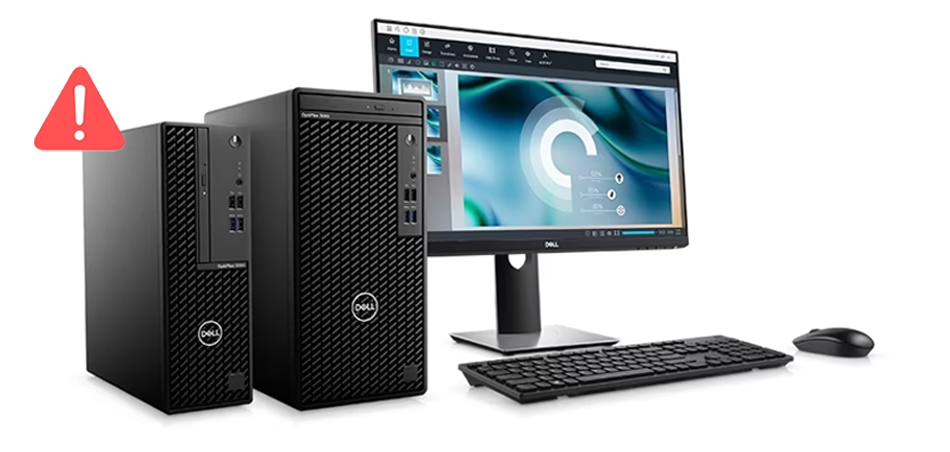
Expert repairs for computers
Our technicians will diagnose the problem with your laptop or PC and discuss their findings to with you, taking care to do so in the shortest possible time, to get you up back up and running again.
PC or Laptop running slow or hot?
Dust attaches to the fan and circuits blocking the air flow, causing overheating problems. A good cleaning from our expert can extend the life of your machine.
Upgrade to a SSD (Solid State Hard Drive) at the same time, it will speed up your laptop and is more reliable.
PRICE LIST
General & Printers
| Service | Description | Price |
|---|---|---|
| Diagnosis Fee | No Fix, No Fee | Free |
| Call out Charge | Per Hour | €80 |
| Remote support | Remote connection (phone / anydesk) | €30 |
| Printers | General Cleaning & Service | €20 – €50 |
| Inkjet printers | Printhead repair | €50 |
Personal Computers & Laptops
| Service | Description | Price |
|---|---|---|
| Overheating | Clean cooling system, change thermal paste, cleaning | €50 |
| Format / Windows | Clean installation of OS | €60 |
| Format + Backup | Clean installation of OS + backup | €80 |
| Virus removal | Scan and remove viruses | €50 |
| Office installation | Install Microsoft Office Software | €85 |
| Motherboard | Laptop motherboard repairs | Quote |
Disable HP Automatic Updates
HP printers often install automatic firmware updates that can cause compatibility issues with third-party cartridges. Follow these steps to disable automatic updates and avoid cartridge errors.
Why Disable Automatic Updates?
- Prevents cartridge compatibility issues
- Avoids "Cartridge Problem" errors
- Maintains printer functionality with compatible cartridges
How to Disable:
- Open the HP Smart app or printer's web interface
- Go to Printer Settings → Advanced Settings
- Find Web Services or Firmware Updates
- Turn off Automatic Updates or set to Manual
Need Help? Contact us at 777 777 85 or visit any of our shops for assistance.

What our customers say
"Fast and reliable! My printer was fixed in no time and works perfectly now."
"Great service! My laptop runs like new after the repair."
Request a Service or Repair
Fill out the form below and we'll get back to you as soon as possible.